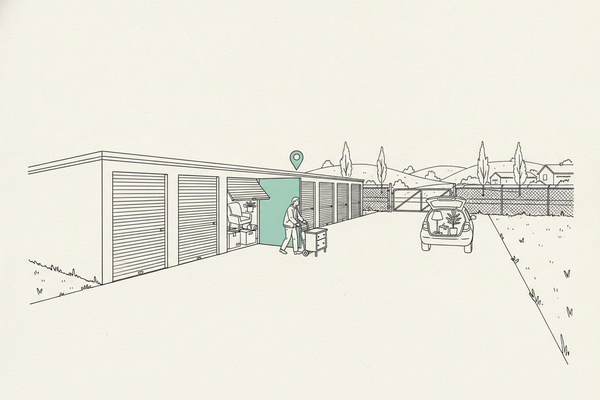
Wrong Google Maps Pin? Get Customers to the Right Door
Your address can be right while your pin is wrong. Here's how to tell the two apart, move the marker safely, and stop it from reverting.

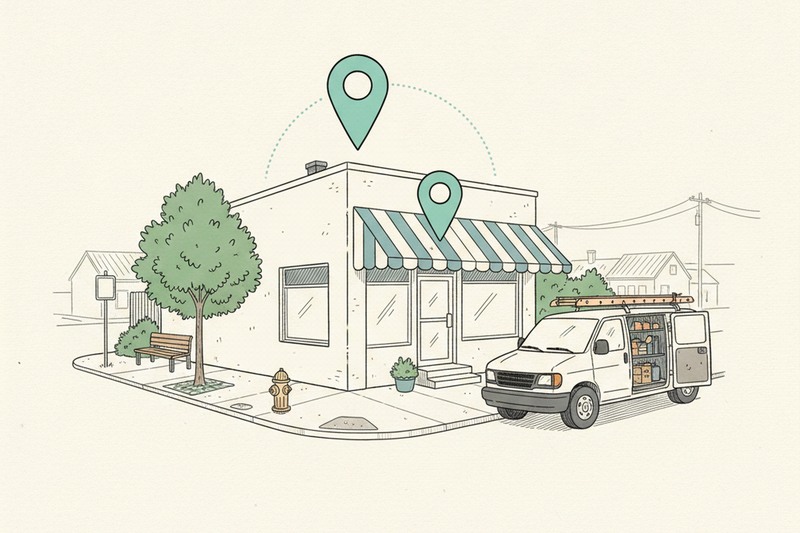
Your address is right. Your pin is wrong. Those are two different problems, and fixing the wrong one is how a routine 30-second correction turns into a suspended profile.
A misplaced marker sends a customer to the wrong entrance, the wrong building, or the far side of a divided highway. That's a missed call, a bad first impression, and sometimes a one-star review you didn't earn. It hits storefronts and mobile crews alike, because both live and die on directions requests from the Map Pack.
First, figure out what's actually wrong
A misplaced marker and an incorrect written address aren't the same thing, and Google treats them as separate details. The public listing shows both together, which is why owners reach for the address field when the marker is the only thing broken.
Use this quick decision list:
- Written address correct, marker wrong: move only the map pin. Leave the written address alone.
- Written address wrong: correct it in your Google Business Profile, and expect more verification. Our guide to fixing a wrong GBP address walks through that heavier process.
- Customers don't come to your physical location: use the service-area setup instead. Don't publish an address that should be hidden or isn't eligible. That's the move that risks a suspension. An ordinary pin adjustment doesn't.
Changing an accurate address for no reason can kick off verification or create profile-quality problems. An address change is far more sensitive than moving a marker. Google may ask for video verification during that process. Provide it only when Google prompts you.
If you control an unverified profile, claim it and complete Google's official verification route where available. If you can't manage it, use the public Maps reporting route described in the next section.
Pins go sideways for plain reasons. Someone typed the address wrong. A new subdivision confused the map. Your business moved. A customer submitted a bad public edit. The cure starts with knowing which one happened.
How to fix a Google Maps pin
Move the pin when the address is already right
If you manage the Google Business Profile, use the owner controls rather than a public edit.
Desktop: Sign into the Google account that manages your profile. Search for your business on Google Maps. Choose Edit profile, then Location. Under Business location, choose Edit and use Adjust to place the map pin at the customer arrival point.
Mobile: Open the Google Maps app while signed into the managing account. Open the Business or Profile controls, choose Edit profile or Edit information, then open Location and adjust the map marker. Labels can vary by account and app version.
Adjusting the marker doesn't change the written address. Zoom in close and drop the pin on the entrance, the unit access point, or wherever the customer actually meets you. Not the center of a parking lot. Not a general neighborhood blob.
Where the pin actually belongs
"Customer arrival point" sounds obvious until you're staring at a satellite view. A few cases that trip owners up:
- Strip mall unit: drop it on your storefront, not the anchor tenant's entrance halfway down the row.
- Second-floor or suite office: drop it on the street-level door customers walk through, not the roof of the building.
- Gated complex or business park: drop it on the gate or the visitor entrance, not the geometric center of the parcel.
- Rear or alley access: drop it wherever the customer parks and walks in, even if the mailing address is on the front street.
Then test it. Open Maps from a phone that isn't signed into your account, start directions from three or four miles out, and follow them to the last turn. If the route dumps you behind a loading dock or on the wrong side of a median, the pin is still wrong no matter what the satellite view looked like.
Google's business address instructions cover this owner workflow.
Save the change, then check the owner view and the public business listing from a private browser window or a device that isn't signed in.
Use "suggest an edit" for a public listing error
If you don't manage the listing and see an incorrect location, use the public edit route instead.
Desktop: Open the place in Google Maps. Select Suggest an edit. Choose the wrong map pin or address option, enter the correction, and submit one evidence-based edit.
Mobile: Open the place in the Maps app and follow the same edit path. Choose the wrong pin or address option, add the correction, and submit it once.
Google's Maps edit instructions cover the current desktop and mobile steps.
If the listing is fake, impersonates a real business, or looks fraudulent, don't pretend to own the profile and don't keep firing off ordinary pin edits. Use Google's business redressal form and the public-listing report option instead. Ownership records, storefront photos, and official address documents help, though Google doesn't guarantee acceptance.
Can't edit an unverified profile? Claim it and run Google's current verification process. Until you actually manage it, the public edit or report route is your only lever.
Rejected edits deserve a second look, not a second batch. Check the status and the evidence you submitted, correct any conflicting address details, then send one careful follow-up. Google reviews edits at wildly different speeds, and it doesn't guarantee a correction.
Get your facts lined up before you submit
Check the real-world details
Before you submit anything, line up your evidence. Compare your website, Google Business Profile, public profiles, and directory sources against the Google Maps listing. Matching details make you easier to trust and easier to find.
Check your website footer, contact page, invoices, business license, utility bill, and lease. They should all show the same business address.
If customers visit a physical location, keep a short evidence checklist: fresh exterior photos, permanent storefront signage, unit number, nearby street signs, official documents, and a customer-facing entrance. The photos should make the location easy to identify. Google requires businesses to use a precise address or service area, and remote mailboxes aren't acceptable business locations.
A clean profile gives customers fewer mismatched details to sort through, and gives Google fewer conflicting sources to average together.
Clean up citations and service-area settings
Next, search your business name, your old address, and your phone number. Check your own website, Apple Maps, Bing, and the trade directories your customers actually use.
Old local citations confuse customers and feed conflicting data back into the wider local data pool. The map is only one part of that picture. Our rundown of Google Maps ranking factors covers the rest of it.
A single stale listing won't decide your rankings. Consistent details help customers and support discovery in local search, but they can't buy you a position. Fix the directories customers use to find your address and phone number first. Our guide to local citations for service businesses covers which ones are worth the afternoon.
If customers don't visit your home, warehouse, or office, hide the street address and set the cities you genuinely serve. A service-area setting isn't a workaround for an address that was never eligible. Google's service area settings cover the setup, and our guide to local SEO for service-area businesses covers the rest.
Finally, run a branded search for your business name, address, and phone number. Check Google Maps and the surrounding search results for matching entrance and contact details.
When a Google Maps map pin keeps reverting
A change that reverts isn't an invitation to keep clicking Save every morning. If customers still see an incorrect location, stop and audit the edit history in your owner-controlled Google Business Profile.
Google Maps compares multiple sources automatically. A reversion doesn't prove a human at Google rejected your change. Look for duplicate profiles tied to an old phone number or address. Look for stale location pages on your own site. Look for directory listings nobody has touched since 2019. Those sources keep resurfacing and keep overwriting you.
Capture the current state, identify and correct the conflicting source, then wait for processing. Keep a log of location updates with screenshots of the current and correct map pin location, public address, date, edit type, evidence submitted, and result. Submit one evidence-backed follow-up if necessary through Google's official status or help channels and current support documentation. Support can't guarantee a correction or override policy requirements.
Location accuracy is a fix, not a ranking trick. It gets customers to your door. Your categories, service details, citations, and Google reviews still decide how competitive you are in the Map Pack.
Once the pin is right, the rest of the profile is what earns the call. Our Google Business Profile checklist runs through the fields worth auditing in one sitting.
Key takeaways
- Move the map pin only when the written address in your Google Business Profile is correct.
- If you manage the listing, correct its address in Google Maps only when your real location changed or was entered wrong.
- If you don't control it, report the issue on Google Maps once, then wait for review instead of submitting duplicate edits.
- Hide the address when customers don't visit it, especially for service-area businesses.
FAQ
How long does a Google Maps pin update take?
Google Maps doesn't publish a universal approval window. Some edits appear quickly, while others remain pending for days or longer, and certain changes can take roughly 30 days during review. Check the public listing and any available edit status, since silence doesn't prove rejection.
Can a pin or address edit trigger reverification?
It can. A simple pin adjustment may need less review than an address change. If you're an unverified owner, claim the Google Business Profile and complete the current verification process. Submit video verification only when Google specifically requests it.
What if Google Maps rejects my edit?
Check your evidence and whether other address sources show different location data. Correct the underlying issue, then make one careful follow-up through the applicable official route. Don't assume Google support can force approval.
How do I report a fake or fraudulent business listing?
Use Google's public reporting route, including suggest an edit when you don't manage the profile, and follow the official business redressal process. Don't report a legitimate business as fraudulent simply because its pin is misplaced.
Will fixing a wrong pin improve local rankings?
It won't automatically improve rankings. Accurate information can reduce customer confusion and help your business appear correctly in search results, but visibility still depends on broader local SEO factors.
Fix the location, then keep it clean
Your map pin should send people to the right door, not the wrong side of town. Keeping Google Maps accurate protects the first impression and supports everything else you're doing in local search.
Curve handles that upkeep for service businesses, along with the reviews, citations, and reporting that sit around it.