Google Review QR Codes: Where to Put Them So People Scan
The code takes five minutes to make. Where you put it decides whether anyone uses it. How to build one, test it, and place it so reviews show up.

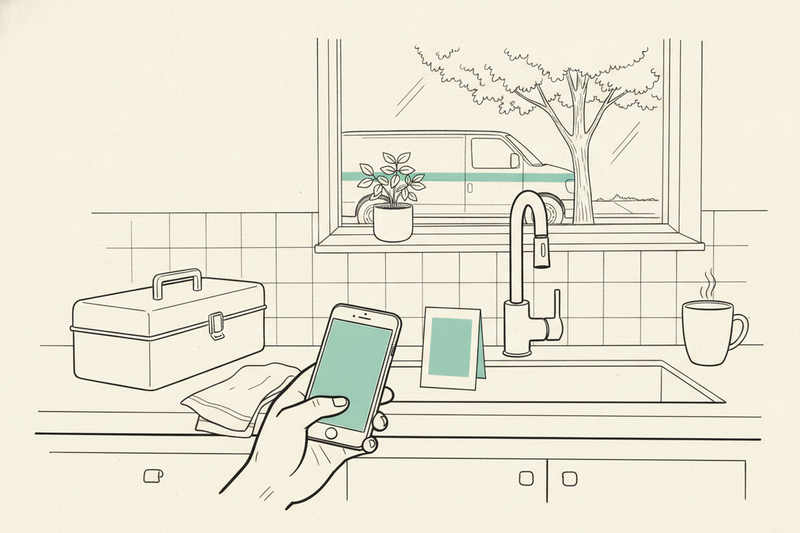
Tape a QR code to the back wall of the lobby and almost nobody scans it. Print the same code on the invoice a happy customer is already holding, and the reviews start showing up. The code is the easy part. Where it lives decides whether it works.
This piece is about the code itself: making it inside your Google Business Profile, testing it, and putting it where people actually scan. It's one tool inside a bigger habit. For the full system of earning reviews, start with how to get more Google reviews. For when to ask, see our guide to review timing. The words to send live in our review request templates.
What a Google review QR code does
A Google review QR code is your Google review link turned into a picture. A customer points their phone camera at it and lands straight on the review box for your listing. No searching your name. No picking between three businesses with similar names. And no landing on the competitor down the street.
That's all it does. It won't make anyone happy with the job, and it won't rescue a thin profile. It just removes the annoying step between "I'd leave a review" and actually leaving one. If you want to know how reviews feed your Map Pack position once they arrive, that's covered in how Google reviews affect local rankings.
How to create a QR code for Google reviews
Google builds the code for you, free, from inside your profile. Do it on a computer. The download option doesn't reliably show up in the phone view.
- Sign in to the Google account that manages your Business Profile.
- Search your business name on Google. Your profile tools appear above the results.
- Click Ask for reviews. Google moves this button around, so it may read Get more reviews instead.
- Copy the short review link, then download the QR code image from the same panel.
If the labels don't match what you see, Google keeps its own review request instructions current.
Skip the paid QR code generator
You don't need a Google review QR code generator from a third-party site. Some of them wrap your link in their own redirect, so the code breaks the day you stop paying. Others push "smart" routing that sends unhappy customers somewhere other than Google. Google's own code points at your listing and nothing else.
Save the link next to the code
Put the image file and the Google review link in one folder with a plain name, like "google review code - main street." You'll use the link in texts and emails, and you'll print it under the code for anyone whose camera won't cooperate. Nobody should have to dig through a desktop full of screenshots to find it next spring.
Test it before you print 500 of anything
A broken code on a stack of receipts is worse than no code. It makes the business look careless, and it wastes the one moment a customer was ready to help. Scan it on two different phones, and turn Wi-Fi off on one of them so you're testing over cell data like a customer would.
- The review box opens for the right business name, at the right address.
- It does not ask the customer to sign in to anything strange.
- The printed version scans from arm's length in normal light.
- There's a clear white border around the code, and the edges are sharp, not fuzzy.
Then test it again after it comes back from the printer. Cheap card stock and glossy coatings both cause trouble that never shows up on screen.
Put the code where the good moment happens
A code works when it's in the customer's hand or line of sight at the moment they're pleased. Anywhere else, it's decoration.
- Counter businesses: the checkout counter, the receipt, a table tent by the register.
- Restaurants and cafes: the check presenter or the bottom of the printed receipt. Not the menu. Nobody reviews a meal they haven't eaten.
- Field service: the final invoice and a leave-behind card on the kitchen counter. A code on the truck does not work. The customer's in the driveway, not studying your bumper.
- Shipped products: a small card in the box, next to the thing they ordered.
- Texts and emails: skip the code and send the link. Nobody scans a code on the same phone they're reading it on.
Keep the design plain. Dark code on a light background, a quiet margin around it, and at least an inch square on anything a customer holds. Brand colors are fine as long as the contrast stays high. Add one short line under it, like "Scan to leave an honest Google review," with the short link printed below for the non-scanners.
Your team still does the asking. The code just gives them something to point at. "There's a link on your invoice if you've got a minute" sounds like a person. Reading a script after every job doesn't.
Stay on the right side of Google's rules
The code is neutral. What you print around it isn't. Ask for an honest review, not a five-star one. Don't offer discounts, gift cards, or raffle entries for reviews. And do not use a tool that screens customers first and only sends the happy ones to Google. That's called review gating, and it costs more than it saves.
Google spells out the rules in its policy on prohibited and restricted content. Give it to whoever handles your printing or your review texts before they get creative.
Check whether the code is earning its spot
Google's built-in code doesn't track scans. That's fine. You do not need a dashboard for this.
Keep a short log with three columns: date, where the request went (counter card, invoice, text), and whether a review showed up that week. Your office manager can fill it in with a few minutes a week. After eight weeks, the pattern's usually obvious. If the counter card produced nothing and the invoice brought in a dozen, move your effort to the invoice.
While you're at it, read what people write. When customers keep mentioning "showed up same day" or "explained the price," that's the language to use on your service pages and in your profile description. Do not coach anyone to say it. Just notice it.
Key takeaways
- A Google review QR code is your review link as a picture. Its job is to cut out the search step.
- Make it free inside your Business Profile on a computer. Save the short link in the same folder.
- Test it on two phones, once on cell data, and again after it's printed.
- Put it on invoices, receipts, and counters. Send the link, not the code, in texts and emails.
- Ask for honest reviews. No incentives, no filtering.
FAQ
Can I use one code for several locations?
No. Each location has its own profile, so each one needs its own link and its own code. A customer who visited your north-side shop shouldn't land on the south-side listing. Label every file with the location name and test each code before it goes out.
Do customers need a Google account to leave a review?
Yes. Google asks them to sign in before they can post. Most Android users and plenty of iPhone users are already signed in, so it's rarely a problem. If a customer doesn't have an account, don't push. Thank them and move on.
Will the code ever stop working?
It points at your profile's review link, so it keeps working as long as the profile does. Re-test it after big profile changes, like a move to a new address, a merged listing, or a suspension. If it breaks, make a fresh code from your profile and reprint.
Make the next invoice do the asking
Make the code today, test it on two phones, and put it on the next invoice or receipt that goes out. Keep the request honest and keep your profile in good shape, using the Google Business Profile checklist if it's been a while. Steady reviews from real customers beat a one-week blitz every time.
If you'd rather have someone keep all of this running every week, that's what Curve does.