"Temporarily Closed" on Google? Here's How to Reopen Fast
Tuesday at 9:12 a.m. and the calls are quiet. Then a customer says it: your profile says "temporarily closed." Here's the fast fix.

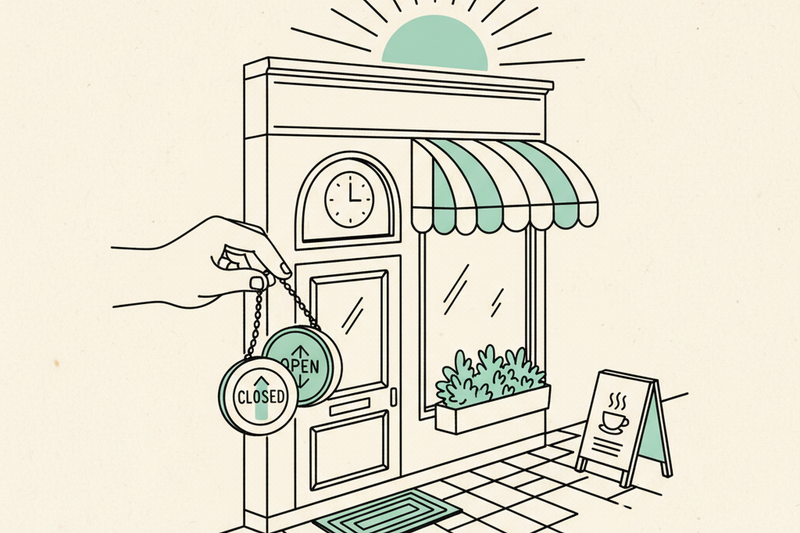
Tuesday at 9:12 a.m. The calls are quiet. A customer texts the thing you never want to hear: your Google profile says "temporarily closed."
If you're open in real life, this is fixable. You can usually flip the listing back to open in a few minutes, then clean up the details that help calls and rankings come back. The trick is fixing the right problem first.
Make sure it's "temporarily closed" and not something else
Temporarily closed isn't the same as permanently closed. Neither is a suspension. Those statuses sound similar when you're losing calls, but the fix for each is different.
Here's how to tell them apart on Google Maps and Search:
- Temporarily closed — the profile still appears, but Google shows the business as closed for now. Fix by marking it open and checking hours.
- Permanently closed — Google believes the location shut down for good. Fix by requesting a correction or contacting support.
- Suspended — the profile's removed from public results entirely. Fix the policy issue, then file a reinstatement request.
A temporary closure often comes from a holiday shutdown, a renovation, a move, a staff mistake, or a bad user-suggested edit. Sometimes Google picks up conflicting signals from the web and marks it on its own. It's not common, but it happens.
If your profile says permanently closed, don't follow the temporarily-closed instructions and hope. You'll waste time. Same if the listing disappeared entirely — that usually means a suspension, not a closure.
This matters because the Map Pack is where local buyers decide fast. They search, see three businesses, tap one, and move on. If Google says you're closed, you don't get a second chance.
How to mark your business as open again
If the listing is marked temporarily closed, the fix is usually four clicks. Google rearranges its menus often, so the path may shift, but the steps are consistent.
- Sign in to the Google account that owns the profile.
- Open the right business location.
- Find the closure setting — usually under "Edit profile," "Hours," or "Close or remove this business."
- Choose "mark as open" or remove the temporary closure, then save.
On some desktop views, you'll see "Actions" → "Open." On others, it lives inside the hours section. Don't panic if your screen looks slightly different from a tutorial.
After you save, check three things right away: main hours, special holiday hours, and main phone number. If any of those are wrong, Google can re-flag the listing within days.
If you manage multiple profiles, slow down before clicking. Reopening the wrong listing is easier than it sounds — owners with similar names across cities mix them up all the time.
Give Google a little time after the change. Sometimes the profile updates immediately. Sometimes it takes a day or two to reflect across Search and Maps.
When the "open" option is missing
If you can't find a way to reopen the listing, the issue usually isn't the button. It's permissions, the actual status, or the data underneath.
First, make sure you're signed in to the right Google account. Owners and managers don't have the same permissions. A team member might think they have access when they only have partial access.
Next, check whether Google actually set the listing to permanently closed instead. That's a different workflow. Look for duplicate profiles, too. If Google sees two versions of the same business with mixed signals, the account gets messy fast.
Don't create and verify a new profile to escape the problem. A duplicate makes it worse and confuses customers and Google.
If the profile should be open and you still can't change it, contact support from inside the profile. Have evidence ready: a current storefront photo, a photo of your posted hours, your website, recent customer reviews. For a service-area business without a storefront, lean on service area details, recent invoices, and current business records.
If the closure has been live for a while, expect some ranking wobble after you fix it. That's normal. Get the profile live first, then rebuild the trust signals around it.
After you reopen, fix the signals that matter
Reopening is step one. Getting the listing performing again is step two.
Start by sweeping the profile itself. Verify hours, primary and secondary categories, services, service area, and attributes. Check that your booking link works and your phone number is current. If Google added strange auto-generated services, clean them up. Our GBP optimization checklist is a useful sweep tool for this.
Then restart the activity that tells Google your business is alive:
- Post a real photo two or three times a week — jobsite shots, team, trucks, finished work.
- Publish a Google post every 7 to 14 days if you have something real to say.
- Ask recent customers for reviews.
- Reply to every new review in plain language within a couple of days.
- Confirm your website link and tracking links still resolve.
Reviews matter more than most owners think — both for ranking and for conversion. Volume helps. Fresh reviews help. The specific words customers use help. We tracked a med spa that lifted its average rating 1.1 stars in 90 days and doubled review pace. Bookings followed. Our guide on getting more Google reviews covers the system if you don't have one yet.
Don't expect instant rank recovery if the profile sat closed for weeks. The fast fix happens in week one. Defensible recovery usually takes 30 to 90 days of steady work.
Why this problem is bigger than one button
A "temporarily closed" label is usually a symptom, not the cause.
The businesses that bounce back fastest are the ones with clean, consistent signals across the web. Their hours match their website. Their categories make sense for what they actually do. Their reviews keep coming in. Their Map Pack signals stay steady because they're not stretched thin in five different places.
If the closure caught you by surprise, treat it as a prompt to audit everything else. Look at duplicate listings. Check your NAP across the main directories. Confirm your service categories still match the work you do. The closure may have been the loudest problem, but it's rarely the only one.
Once the profile's active again, the harder questions show up. Why did rankings dip even after reopening? Is the category right? Did review velocity drop during the closure? Is a competitor running a tighter playbook now? Those are the real recovery questions, not whether the button works.
The bottom line
If the listing's only marked temporarily closed, don't start over. Reopen the existing profile. Confirm hours, phone, and address. Then get back to the work that actually drives local visibility — fresh photos, steady review flow, accurate services.
If your status was wrongly set to permanently closed, move faster. The fix exists, but it takes more time the longer the wrong label stays live. Either way, the answer is the same: get the profile right first, then keep it active. The button is the start. The system is the recovery.