Google Business Profile More Hours: Stop Hiding Your Second Schedule
Your main hours only tell half the story. More hours lets you publish separate schedules for delivery, pickup, access, and senior hours without bending your regular hours.

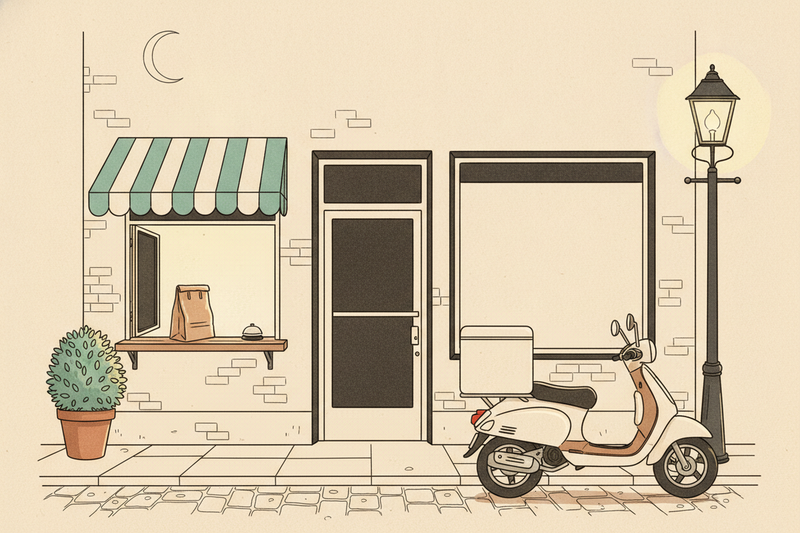
Senior shopping hour. Curbside pickup. A gym that members can badge into long after the front desk goes dark. None of that fits in one row of opening and closing times, and most profiles don't even try.
That's the job of Google Business Profile More hours, a separate field for services that keep their own schedule. It isn't your regular weekly hours, the ones that decide whether you appear in open now searches. It isn't special hours either, the date-by-date overrides for holidays and short closures covered in our guide to GBP holiday hours. This piece is only about the second schedule: delivery, pickup, access, senior hours, and the rest.
What More hours actually is
More hours sits under your regular hours as extra rows, each tied to one service. A customer checking whether you deliver tonight sees your delivery hours. A customer planning a quiet trip before the rush sees your senior hours. Your main hours of operation stay exactly where they are.
Think of it as an add-on, not a replacement. Google expects your regular hours to be set first, and More hours builds on top of them. If you still call this panel your Google My Business hours, it's the same place under a newer name.
The hour types you might see
Google doesn't hand every business the same menu. The options depend on your primary category, so a restaurant and a self-storage facility see different lists. Types Google offers include:
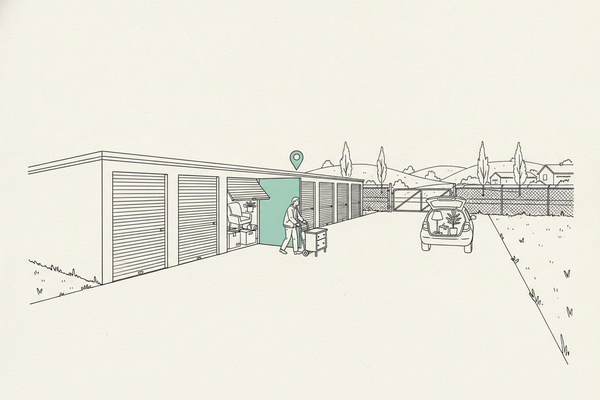
- Access hours: when customers can get in on their own, like a storage gate or a 24-hour gym door.
- Delivery, takeout, pickup, and drive-through: separate windows for how an order leaves the building.
- Kitchen, breakfast, brunch, lunch, dinner, and happy hours: the restaurant and bar set.
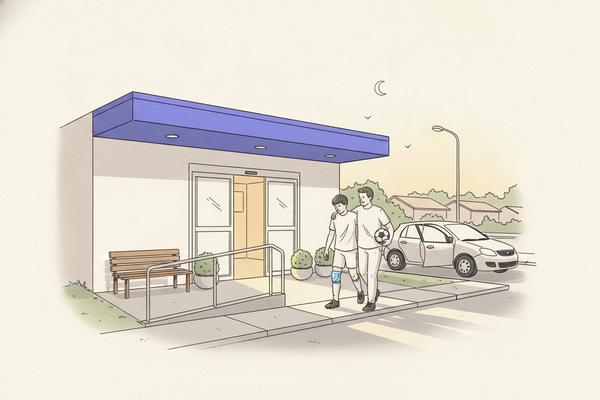
- Senior hours: reserved shopping or appointment times for older customers.
- Online service hours: when you run video appointments or remote help.
The labels shift from time to time, and a few categories get types most businesses never see. Treat the list in your own dashboard as the real one.
Who should use it, and who can skip it
The test is simple. Does a customer get a different answer to "When can I get this?" depending on which service they want? If yes, More hours earns its spot. If no, leave it blank.
A few businesses that pass the test:
- A pizza shop whose dining room closes before its delivery drivers clock out.
- A pharmacy or grocery store with a drive-through window or a senior shopping hour.
- A self-storage facility or 24-hour gym where the doors open earlier than the office.
- A counseling practice or tutoring center that takes video sessions outside in-office hours.
- A parts store whose curbside pickup starts before the doors open.
Most trades will skip it. A plumber, roofer, or HVAC company runs one schedule, and the types Google offers those categories rarely fit. That's fine. An empty More hours section costs you nothing. A made-up one confuses the exact people trying to hire you.
How to add More hours
Open your profile from Google Search or Maps while signed in to the account that manages it. Then:
- Select Edit profile, then Hours.
- Find Add more hours, below your regular hours.
- Pick the service type that matches what you actually offer.
- Enter the days and times for that service. Add a second time range on any day with a break.
- Save, then repeat for each service that runs on its own schedule.
Google's More hours help page shows the current layout if your screen doesn't match.
Changes don't always show up right away. If one sits in review longer than it should, our breakdown of stuck pending edits walks through the usual causes.
Four mistakes that make More hours backfire
Stretching your main hours to cover a service
A shop that closes at 6 but takes phone orders until 8 shouldn't list 8 as its closing time. Keep the main hours honest and put the extra window where it belongs. Someone who drives over at 7:30 expecting an open door won't care that the phone line was staffed.
Switching categories to get a missing type
If access hours or pickup hours don't appear, that's Google telling you how it reads your business. Do not change an accurate primary category just to make an option show up. Your category does far more for where you rank than a secondary schedule ever will. Our look at what moves Google Maps rankings explains why.
Forgetting More hours on holidays
Special hours on your main schedule don't carry over to delivery, pickup, or any other More hours row. Each one needs its own holiday entry. Before any holiday, walk through every row, not just the top one. The holiday setup itself lives in the guide linked above.
Setting it once and never looking again
Service schedules drift faster than main hours. Delivery windows shrink when a driver quits. A senior hour quietly ends. A service that stopped months ago but still shows on your profile is a promise you can't keep.
Put More hours on the same review rhythm as the rest of your profile. Here's how often a profile really needs updating. And if a row changes without you touching it, a stranger's suggestion probably got accepted. Here's what to do when someone edits your GBP.
Running more than one location
Service schedules vary more between locations than main hours do. One store has a drive-through and the other doesn't. One kitchen runs late on weekends. Copying one location's More hours to the rest is the fastest way to publish a schedule that isn't true somewhere.
Keep a simple sheet per location: each service, its days, its times, and who updates it. When something changes, edit that location's profile and check its public listing. Opening a new branch? It needs its own profile, and that profile needs its own More hours.
Will More hours help you rank?
Nobody can promise that, and Google doesn't. More hours exists to tell customers when a service is available. That's the payoff: fewer "Are you delivering tonight?" calls, fewer wasted trips, and fewer one-star reviews from someone who showed up at the wrong window.
What it does do is make your profile more complete and more accurate. Those basics hold up everything else. If you're working through the rest of your listing, this Google Business Profile checklist covers every field worth filling in.
Key takeaways
- More hours is for services on their own schedule, like delivery, pickup, access, or senior hours.
- Regular hours are your main schedule. Special hours handle holiday dates. More hours handles everything that runs on a different clock.
- The types you see depend on your category. Don't change an accurate category to get one.
- Holiday special hours do not carry over to More hours. Update each row.
- If your business runs one schedule, leave More hours empty.
FAQ
Where do More hours show up for customers?
On your public profile in Search and Maps, next to your main hours. Customers usually see them after tapping to expand the hours panel. Pull up your own listing on a phone to see exactly how yours look.
Is there a "by appointment" option in More hours?
No. Google doesn't offer an appointment-only row. Keep your regular hours to the times someone answers or the door is open, and send appointment traffic through a booking link on your profile.
Can I add a service type that isn't on the list?
No. You can only choose from the types Google shows for your category. If a schedule doesn't fit any of them, spell it out on your website and in a Google post rather than stretching a type to cover it.
The short version
Your main hours answer one question. More hours answers the rest, for the businesses that need it. Add the rows that match real services, skip the ones that don't, and check them every time your schedule shifts.
Curve keeps hours like these current as part of its weekly profile work for local businesses.