Google Says Your Business Name Has Unsupported Characters? Here's the Fix
The error never says which character is the problem. Here's what triggers it, how to clear it in five minutes, and what to do when an ampersand or accent really is part of your name.

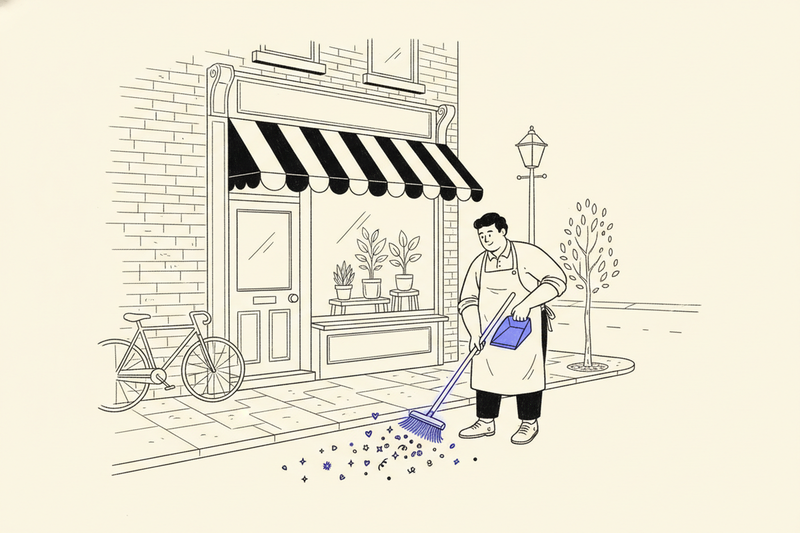
Two characters. For a lot of businesses, that's the whole problem: a little ™ after the brand name, and a stray space that came along when the name was pasted in from an old Word document. Google refuses to save the name, and the error message won't say which character it hates.
This post covers that one error, the one that fires the moment you hit save, before anyone at Google has reviewed anything. If your name edit saved fine and got rejected later, or Google asked you to re-verify after the change, that's a different problem with its own fix: see what to do when a GBP name change is rejected. And if you're trying to set up the old @handle-style link for your profile, that's covered in our piece on GBP short names.
What the unsupported characters error actually means
The exact wording is "Your company name has unsupported characters. Please remove them to continue." It is a filter on the form, not a judgment on your business. Nothing was submitted, nothing went to review, and your listing still shows whatever name it had before.
That's the good news. The bad news is that the filter doesn't point at the offending character. It just blocks the save. So the fix is detective work: figure out which character in the field isn't what it looks like, or isn't allowed at all.
What triggers it
Some of these trip the filter the instant you save. Others slip past the form and get your edit rejected in review a few days later. Either way, they have to go.
- Emoji and decorative symbols. Hearts, stars, check marks, sparkles, arrows, little house icons. Even if your sign has a heart where the O should be, the Google name doesn't.
- Trademark and registration marks. ®, ™, and © belong on your packaging, not in the name field.
- Symbols used as dividers. A pipe, a bullet, an @, or a slash used to glue a tagline onto the name ("Rivera Roofing | Storm Experts"). Google's business name guidelines say special characters only belong when they're part of how the business really presents itself.
- ALL CAPS. If your name isn't styled in capitals on your sign and website, don't type it that way. Google treats shouting as decoration.
- Taglines and slogans. Anything after a dash, colon, or comma that describes what you do rather than what you're called.
- "Fancy font" text. Those websites that turn your name into bold or script lettering don't change the font. They swap every letter for a math symbol that only looks like a letter. Google sees a string of symbols.
- Invisible characters from copy and paste. Non-breaking spaces, zero-width spaces, double spaces, and trailing spaces all ride along when you copy a name out of a PDF, a website, or a document. You can't see them. The filter can.
- Lookalike punctuation. Word processors quietly swap a straight apostrophe for a curly one and a hyphen for a longer dash. "Joe's" typed on a keyboard and "Joe's" pasted from a letterhead may not be the same characters.
How to fix it in five minutes
Do not try to edit around the problem. Clear the field and start over.
- Delete everything in the name field. Select all and hit backspace, so no hidden spaces survive at either end.
- Type the name on your keyboard. Do not paste it. If you must paste, drop it into a plain-text app first (Notepad on Windows, TextEdit set to plain text on a Mac), then copy it from there.
- Leave out emoji, ®, ™, pipes, and anything after a divider.
- Use the capitalization on your storefront or truck, not all caps.
- Check the end of the name. Put your cursor after the last letter and make sure there's nothing after it.
- Save. If it goes through, the filter is happy and the edit moves to Google's normal review.
Still blocked? Remove punctuation one piece at a time and try again after each change. Drop the ampersand, then the apostrophe, then the period. The character that makes the error disappear is your culprit, and now you know exactly what to retype or replace.
When the character really is part of your name
Ordinary punctuation isn't the enemy. Ampersands (Smith & Sons), apostrophes (Joe's Pizza), hyphens, periods (Dr. Patel Family Dental), and accented letters (Café Rosa, José's Tire Shop) are normal parts of real business names, and Google's guidelines expect to see them.
When one of those gets flagged, the real character is rarely the problem. It's a lookalike. The apostrophe is curly, the hyphen is an en dash, or the accent was built from two separate characters by whatever app you copied from. Delete it and type it fresh from your keyboard. On a phone, hold down the plain letter to pick the accented version rather than pasting it.
Legal names are a different story. Your registration might say "Rivera Roofing Group, LLC" or include a registered mark, but Google wants the name customers actually see. Leave off the LLC, the Inc., and the ® unless they're genuinely part of your sign and branding. Keep the legal paperwork handy anyway. If Google ever asks you to verify, those documents back up the name you chose.
If a character that's truly part of your real-world name still won't save after a clean retype, do not swap in a creative workaround. Contact Google Business Profile support through the help center and include a photo of your storefront sign or vehicle showing the name.
Don't refill the name with keywords
Cutting a tagline can feel like losing ground, and the temptation is to replace it with a service or a city. That's how a name that saved fine gets rejected in review, or worse. The fuller case against it lives in our guide to near me SEO without keyword stuffing.
The name does matter for rankings, which is exactly why Google polices it. Relevance, distance, and prominence do the heavy lifting. See how Google decides who ranks on Maps for the rest of the picture.
After the name saves
Getting past the filter only means Google accepted the input. The edit still goes through review, and it may sit as pending for a while. Leave it alone while it's pending. Resubmitting variations won't speed anything up.
If the review comes back rejected, that's the job of our rejected name change fix. If you're changing the name because the business itself changed, read up on rebranding a GBP without losing rankings before you touch the field. And once the name is sorted, run through the Google Business Profile checklist to catch anything else that's been sitting wrong.
Key takeaways
- The unsupported characters error is a form filter. Nothing was submitted and your listing hasn't changed.
- Emoji, ®, ™, pipes, fancy-font text, ALL CAPS, taglines, and invisible pasted spaces are the usual causes.
- Clear the field and type the name by hand. If a real ampersand or accent gets flagged, it's a lookalike character. Retype it.
Frequently asked questions
Why does the name save on my laptop but not my phone?
Phone keyboards change punctuation as you type. On an iPhone, Smart Punctuation turns a straight apostrophe into a curly one and a double hyphen into a long dash. If the error only shows up on mobile, save the edit from a computer, or turn Smart Punctuation off in your keyboard settings for a minute.
Does leaving the ® off my Google listing hurt my trademark?
No. Your trademark rights come from your registration and how you use the mark in business, not from how a directory displays your name. Keep using the ® on your own materials. If you have a specific legal worry, that's a question for your trademark attorney.
Can my business name be in another alphabet?
Yes. The filter goes after symbols and decoration, not languages. A restaurant whose sign is in Chinese, Korean, Arabic, or Cyrillic can use that name. What still trips it is mixing in emoji or fancy-font letters, the same as any other name.
Type it the way your sign reads
This error looks scary and almost never is. Clear the field, type the name exactly as it appears on your storefront, truck, or website, and leave the decoration out. Nine times out of ten, that's the whole fix.
Curve handles this kind of profile cleanup as part of its weekly GBP work, but a name fix is one you can do yourself before lunch.